FAQ
Every answer here is short on purpose, and every one ends with a link to the page that explains the topic properly. If you are new, read What is Pixploder, walk the Feature tour and follow the Quickstart first — this page is for the moments when something surprises you.
Costs. Only AI actions spend credits, and each of them shows its price before you press it — on the button, or on the option you picked. Uploading, cutting by hand, keying, judging results, shadows, polish, previews and all exports are free on every plan. See Credits & plans.
Getting started
What does Pixploder actually do?
It takes one flat 2D scene and gives you back its parts. The AI finds the objects, you cut them out, and the art that was hidden behind them gets repainted — so a single background image becomes a background plus separate, game-ready sprites you can move, shadow and export. See What is Pixploder.
Do I need an account, and can I try it without paying?
Yes to the account: the editor opens behind Sign in to start, because your projects live in your account rather than in the browser. A free account costs nothing and needs no payment details — it runs AI on one-time credit packs, so you never need a subscription. The 3-day Pro trial is offered as soon as you are signed in, and Continue with Free — you can start the trial later from Plans & credits puts it off without losing it. See Credits & plans.
Do I have to run all eight steps, in order?
No. Once an image is loaded every step in the bar at the top is clickable, so you can jump straight to the one you need and come back later. Step 1 even offers Skip — go straight to Find & Cut, and a layered PSD skips ahead on its own. See Quickstart.
What does Pixploder need from my browser?
A browser, and nothing else. There is no install, no plugin and no GPU requirement, and nothing in the app tests your browser or turns one away — the cutting, keying, shadows, polish and every exporter run locally in the tab. Your sign-in session is stored in the browser, so a profile that blocks all site data will keep signing you out and will not remember preferences. Zoom and pan use the wheel and middle-drag everywhere, listed in Keyboard & pointer.
Input and styles
Does my art have to be pixel art?
No. The dropzone asks for "a 2D art scene (PNG, JPG or layered PSD) — any style", the generator panel beside it says Any art style works, and painted and anime scenes go through the same pipeline as pixel art. Pixploder does not convert your art to pixel art either — the output keeps the style you brought in, unless you deliberately turn on ★ Repixelize at Step 7 · Final Polish. See Step 1 · Source Art.
What can I bring in, and how big can it be?
PNG, JPG, .psd and .psb, dropped on the upload box or picked with Upload a PNG / JPG / PSD. The hard limit is 4096 px on the longest side: anything bigger is refused before it is committed, with Source art is capped at 4096 px on its longest side — scale it down and bring it in again., and whatever you already had open stays untouched. See Step 1 · Source Art.
Can Pixploder generate the scene for me?
Yes. The right panel on Step 1 takes a prompt and an Aspect, and Generate · N credits produces scenes you can compare; Use this image sends the one you pick down the pipeline. That is an AI action and the only paid thing on the step. See Step 1 · Source Art.
Can I give the scene more room than the picture I brought in?
Yes, before you cut anything. Drag any edge or corner of the canvas outward to grow it — or inward to crop, which is free — and the AI paints whatever new space you opened so that it continues your scene. Your own pixels never move, scale or resample, and a scene already framed the way you want passes straight through the step. See Step 2 · Extend Canvas.
I dropped in a PSD and landed on Step 5 — is that right?
Yes, that is deliberate. A PSD is read entirely in your browser with no AI involved, every raster layer becomes a sprite with its alpha already in place, and there is nothing left to find or cut — so the editor jumps straight to Step 5 · Finish Sprites. Steps 2 to 4 are still reachable from the step bar if you want them. See Step 1 · Source Art.
Some of my PSD layers didn't arrive
A few limits explain almost every case: group folders are flattened to the layers inside them, layers with no pixels of their own — and layers sitting at zero opacity — are skipped, and the first 60 of whatever is left are imported. Blend modes and layer effects are not carried over, though layer opacity is baked into the sprite's transparency, and layers you had hidden in Photoshop arrive visible. A file refused outright reports Could not import that PSD: with the reason. See Step 1 · Source Art.
Note. You keep all rights to the images you upload and to the outputs you generate — Pixploder claims no ownership of them. The formal wording is in the Terms page linked from the site footer.
Costs and billing
What actually spends credits?
Only calls to the AI: generating a scene, filling an extend, finding and segmenting objects, rebuilding backplate areas, rebuilding sprites, and three options inside the editors — ✨ Re-mask in the ✨ AI mask section, AI carve inside ◱ Split, and the AI engine in FILL HOLES. Everything else is free — hand masking, both Refine mask engines, the keyer, judging and comparing results, undo, shadows, ★ Repixelize, palette snapping, the previews and every export format. Each paid control carries its own number, and a Use N credits? confirmation names the cost and your balance before anything is spent. See Credits & plans.
What do the plans cost?
Free is $0 and runs on one-time credit packs. Pro is $9.90/mo for 400 credits a month, Studio is $29.90/mo for 1,500, and Paused is a $1.90/mo retention tier that keeps your projects while the monthly allowance stops. Packs are 200 credits for $6.90 and 600 for $18.90. See Credits & plans.
How does the 3-day Pro trial work?
You add your payment details on the secure checkout, get the trial's credit pool immediately (the offer prints the current number whenever the app can read it, and otherwise says so without a figure) and the full AI feature set, and nothing is charged until day 3, when it becomes a Pro subscription at $9.90/mo. Cancel before then and you pay nothing, and whatever trial credits you have not spent stay on your account as pay-as-you-go credits. It is one per account — a second trial is granted no allowance at all. The offer appears as soon as you sign in on a free account; decline it and it waits for you on the Pro card in Plans & credits, and comes back the first time an AI action runs you out of credits. See Credits & plans.
Do credit packs expire?
Yes, 6 months after your most recent top-up. Bought and gifted credits share one expiry date covering the whole balance, and buying another pack pushes that single date forward for everything you are holding — it never moves backwards. Monthly plan credits are separate: they reset each billing period and do not roll over. See Credits & plans.
My generation failed — was I charged?
Not at the full price, and usually not at all. Credits are reserved when an AI action starts, and a failure that never reached the AI hands the whole reservation back with the notice saying so — The AI model is overloaded right now. Your credits were refunded — try again in a minute. A failure after the AI has already drawn keeps a floor of one credit and returns the rest, in a notice that states it: You were charged 1 credit because the AI provider had already run; the other N went back to your balance. A tool that is switched off (This tool is temporarily unavailable — please try again later.) reserves nothing at all, and the one case that can promise you nothing is a lost connection: The request may have finished and been charged — check your credits before trying again. See Credits & plans.
Why does the same kind of action cost a different number of credits?
Because the price follows the work and the option you picked in the step's AI model list. Naming and cutting objects are cheap and flat; painting new pixels costs more. On Step 5 · Finish Sprites the price is flat per call, not per sprite, so the same set of sprites can cost one call or several depending on how they pack — see Calls & sheets.
What happens when I run out of credits?
The action stops before it starts, as a Heads up dialog with See plans and Got it. While your account still has its free trial it reads This needs <n> credits and your balance is <m>. Start the 3-day Pro trial for <t> credits now (payment details required, $0 today), or buy a one-time credit pack. — <n> is the action's cost, <m> your balance, and <t> the trial's current credit grant, which the operator sets and the offer prints when the app can read it (otherwise the same sentence appears with no figure). Once the trial is spent, This needs <n> credits and your balance is <m>. Buy a one-time credit pack, or move to a monthly plan. Nothing is charged, nothing in your project is lost, and every free tool keeps working. If a balance runs dry partway through a batch the server refuses the rest with Out of AI credits. Upgrade your plan or buy a credit pack. — the calls that already ran are yours, the refused ones cost nothing. See Credits & plans.
Cutting and masks
The AI missed an object, or cut one badly
Neither is a dead end. On Step 3 · Find & Cut you can run the finder again — it reads Find More Objects once there are tags — use Sweep Leftovers · SAM 2 for whatever no tag named, or draw the element yourself with New element. Any element's mask can then be fixed in the Edit mask workspace, where Tap, Brush, Box, Grow 1px, Shrink 1px, Fill holes, ⇄ Invert and both Refine mask engines are free; only ✨ Re-mask and ◱ Split's AI carve spend credits there. See the mask editor.
Why does the background have to be rebuilt at all?
Because lifting an object out of a flat picture leaves a hole exactly its shape — the art behind it was never drawn. Step 4 repaints those holes into one clean backdrop: its first stage rolls whole-scene takes and installs the one you like, its second repaints any single spot that came back wrong. Continue to Finish Sprites then flattens the result into the single plate that every later step and every export stands on. See Step 4 · Rebuild Backplate.
Why does everything turn magenta while sprites are rebuilt?
Because that is how the pieces come back separable. Queued sprites are packed onto a flat magenta sheet before they are sent, and the reply is keyed — the magenta is turned back into transparency — so each sprite lands as its own cut-out again. The 🎛 drawer under the big preview exposes every keying dial for one sprite and one generation. See The keyer.
A sprite came back with a hole in it
Open the wrench badge on that version to get the repair window: FILL HOLES patches gaps, EDGE rebuilds the outline, and MATCH ORIGINAL pulls color back toward the source cut-out — all previewed live before you press ✓ Apply & close. Only one thing there costs anything: Fill mask inside FILL HOLES, and only while the AI engine is the picked one — the other two engines are tagged free and run on your machine. When several sprites need the same fix, the bulk Edge and Match chips on the multi-select HUD apply it across the whole selection at once, for nothing. See Sprite repair.
Rebuilding sprites
One of my sprites is already fine — do I have to rebuild it?
No, and skipping it costs nothing. New sprites arrive on the QUEUED shelf, but tapping ✓ on a tile takes it out of the queue and files it under APPROVED without generating anything — from there it flows straight on to shadows, polish and every export. ↺ puts it back in the queue if you change your mind. See Step 5 · Finish Sprites.
A sprite of mine never reaches the shadows, the preview or my export
That is the approval gate, and it switches on the first time you ✓-pick anything: before that everything flows through, and after it a sprite ships only when it is ✓-picked or it sits in no generation call at all. The usual missing case is a sprite that has been through a run and was never judged — it is still sitting on RESULTS, waiting for you. Tap ✓ on its tile and it reaches Step 6 · Add Shadows, the previews and every export. See Step 5 · Finish Sprites.
What is a call, and why do several sprites share one?
A call is one request to the AI carrying a packed sheet of several sprites at once. The price is flat per call, so packing eight sprites into one request costs the same as packing one — which is exactly why the app packs them. The cap is 20 sprites per call on the model Step 5 starts on and 8 on the other two it offers, and sheets also split on packed canvas size and on a per-sprite detail floor. See Calls & sheets.
Can I run one call on a different AI model?
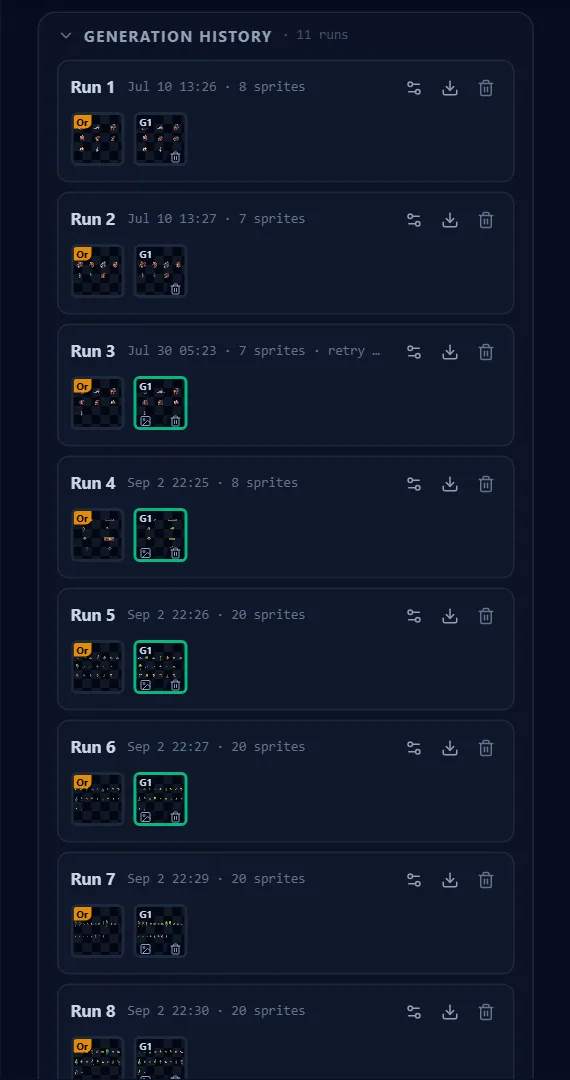
Not inside the queue. The whole queue runs the one model set in the section's ⚙, and a pending call has no generator of its own to remember — so changing the setting changes every queued call at once. The one per-run choice that survives is the Run again picker on a finished run in GENERATION HISTORY. See Calls & sheets.
Do Fill zones protect the pixels outside them?
No, and nothing in the app claims they do. The toggle says as much in its own tooltip — Fill zones — paint where the AI should rebuild. It aims the call; the sprite still comes back redrawn. — and the ▨ mask corner that tightens that aim promises no more: The mask steers the AI, but the whole sprite is redrawn — no pixel guarantee. Nothing of your original is held back or pasted in on either path, so if you want the old pixels, click the earlier version in the sprite's version row. See Step 5 · Finish Sprites.
What is Re-cut?
It is a free second cut of a run you already paid for. When a finished run's row shows ⓘ G<n> was cut before the grey-field repair — it can be cut again from the model's own image, free., the Re-cut G<n> button beside it cuts those sprites out of the image that run already stores — the confirmation says no model call, no credits. The generation is replaced in place and earlier versions are untouched. See Calls & sheets.
A run finished, but some sprites came back unchanged
That is a partial return, and it is named for you: a rose line above the shelves reads N of M sprites didn't come back in this run:, lists them, and ends with They keep their previous image — generating a new variant usually recovers them. The run is charged because the AI did draw, so the fix is another attempt at the stragglers — ↺ on the tile to re-queue, ↺ on a version row to re-roll that one sprite, or Run again on that run. See Step 5 · Finish Sprites.
Why does the AI give me a different result every time?
Because image generation is probabilistic — the same request on the same scene comes back fresh each run. Pixploder is built around that: every generation is kept as a take, a version or a variant, and running again only ever adds an option. Comparing and picking never re-run anything, so choosing is free. See Step 5 · Finish Sprites.
Shadows and polish
Do shadows and Final Polish cost credits?
No. Step 6 · Add Shadows and Step 7 · Final Polish have no paid controls at all — the shadow renderer, ★ Repixelize and the palette rack are pure code running in your browser, so nothing on either step can spend a credit. Experiment as much as you like, and see Credits & plans for what does spend.
Can I turn a painted or anime scene into pixel art?
That is what ★ Repixelize is for: it bakes the whole scene — background, sprites and shadows — onto a pixel grid at the cell size you choose. It starts switched on only when your art already reads as pixel art at intake, so on a painted scene you turn it on yourself. See Step 7 · Final Polish.
Can I put the finished scene on my own palette?
Yes, and it costs nothing. The palette rack takes an image — a palette strip, a sheet, a screenshot of art whose colors you want — through Import palette…, turns every unique opaque color in it into an entry, and ◧ Palette snap then rewrites the background, every sprite and the shadow ink to the nearest entry of the active palette. No palette ships with Pixploder, palette images are decoded in your browser and never uploaded, and alpha is never touched, so the edges you keyed come through exactly as they were. See Step 7 · Final Polish.
Export and engines
Are exports free?
Yes, on every plan, including Free. Every exporter runs entirely in your browser — no AI call, no server round trip, no credits — so a project you can open is a project you can get out. See Export formats.
Which export keeps my sprite groups?
Export PSD (layered Photoshop) is the direct answer: groups become folders and every sprite an editable positioned layer. Export to Aseprite (.aseprite) also preserves groups natively, Export to Godot 4 (.tscn + PNGs) turns them into Node2D parents, Export to Unity (.unitypackage) and Export to Unreal Engine (UE5 project) rebuild them as parent objects and World Outliner folders, and Cropped PNGs + JSON records them in scene.json. See Export formats.
When do I get a .psb instead of a .psd?
Automatically, and only when your scene is very large: past 30,000 px on either side the exporter writes Photoshop's Large Document Format instead. There is no switch to set — the panel states it under the button. See Export formats.
Which game engines can I export to?
Export to Unity (.unitypackage), Export to Unreal Engine (UE5 project), Export to Godot 4 (.tscn + PNGs), Export to GameMaker (assets + GML), Export to RPG Maker MZ (plugin) and Export to Spine 2D (JSON + atlas), plus Texture atlas + JSON/XML for anything that reads a TexturePacker or Starling atlas. Eleven formats in all, grouped in the EXPORT panel on Step 8 · Preview & Export. See Export formats.
Projects, storage and account
Does my work save automatically?
Yes. With a project open, Pixploder writes it back to your account about a second and a half after your last change — there is no Save button for the project you are in, and a fresh AI result is written at once. The header beside the project name reads saving…, unsaved changes…, saved, or save failed in rose. See Projects & autosave.
This project was changed in another window. — which button do I press?
That dialog means two tabs or devices edited the same project. Load those changes keeps the other window's version, Overwrite with my version keeps this one's, and Decide later — neither version is applied postpones the decision. Only background takes are merged either way — sprite generations, scene generations and extend takes from the losing side are replaced. See Projects & autosave.
How much storage do I get, and how many projects?
Projects are unlimited in number on every plan. Storage is 1 GB on Free and 100 GB on Pro, Studio, the trial and Paused, and the Projects panel prints the live figure. Once it is full, saving stops with You're out of storage space. over advice that fits the account — normally Delete a project you no longer need to free space. — while reading, exporting and deleting all keep working. See Credits & plans.
Can I keep several projects, and how do I switch?
Yes — the Projects button in the header opens the panel that lists every project on the account. open on a row loads that project, New starts an empty one under a name you type, and Save current forks whatever is on screen into a second project instead of moving it. Switching fences anything still generating, so let a run land before you leave. See Projects & autosave.
What happens to my projects if I cancel or drop to Free?
They go on a 14-day clock, and a rose banner carries the exact date: Your saved projects will be deleted on <date>. Resubscribe to keep them, or export them now. Cancel while still inside a paid period and you get the earlier amber warning instead, offering Keep my projects. Three ways out: resubscribe before the date, pause for $1.90/mo while you still have a plan to pause, or export — an exported PSD or engine package on your own disk is untouched by anything your account does next. See Credits & plans.
Careful. The clock is not only for downgrades. A Free account starts it when you save your first project, even if you have never subscribed. Once the date passes the projects are gone, so export from Step 8 · Preview & Export if you are unsure.
Troubleshooting
Can I close the tab while the AI is working?
Better not to, and the browser puts its own leave-the-page prompt in your way while a generation or a save is still pending. The run itself survives either way: the server finishes the job with no connection attached, so a dropped Wi-Fi, a sleeping laptop or a backgrounded tab all recover on their own. Reloading or closing the tab breaks only the delivery — come back and a Recovered generation card carries the image, a Download button and, for a scene generation in the project that started it, Apply. Its ✕ throws the result away (Download it before dismissing — it is not kept.), so download before you dismiss. See Step 1 · Source Art.
Careful. Switching projects mid-run is handled, but not for free: the reply is deliberately dropped rather than landed in the document you moved to, and you are told — A generation from the previous project finished after you switched — its result was discarded (the credits were already spent). Let a spinning generate button settle before you switch.
The editor went blank or showed an error screen. Did I lose my project?
No. A crash is replaced by a dark panel headed Pixploder hit an error with the line "Your project is autosaved — reload to continue. If this keeps happening, copy the text below and report it.", a Reload button and the error text itself. Reload and you pick up from the last save. See Projects & autosave.
Why am I asked to sign in again?
Your session lives in the browser and refreshes itself, so this should be rare — when it happens the session expired or was revoked. Sign in again and you are back where you were, because projects live in your account. Forgot password? on the sign-in dialog mails a reset link, and Continue with Google is the other way in. See Projects & autosave.
Where do I get help or report a bug?
The Pixploder Discord is the community and support server and the fastest way to reach us: discord.gg/WJbtvZ2JbK. For billing, account or privacy matters, email [email protected]; the Privacy, Terms, Refunds and Imprint pages in the site footer carry the formal versions, and what the app itself does with your plan and your credits is on Credits & plans.
Tip. Three things make a bug fixable in one round: which step you were on, the exact text of any notice you saw, and — if the editor crashed — the block of error text from the Pixploder hit an error screen.