Projects & autosave
Every scene you build in Pixploder lives inside a named project stored in your account, and the editor writes your changes back to the cloud on its own. There is no Save button for the open project — editing it is saving it. Signing in is required, and once you are in you open or name a project before the editor appears. From then on the Projects panel is where you create, fork, load, rename, and delete saved work, and where you can see how much of your storage each project is using.
Costs. Everything on this page is free. Creating, saving, autosaving, loading, renaming, and deleting projects never spend credits — credits only pay for the AI actions inside the eight pipeline steps. See Credits & plans.
Sign in, then pick a project
The editor never opens anonymously. Entering the app from the landing page opens the sign-in dialog immediately, and behind it sits a Sign in to start screen with its own Sign in / Create account button and a ← Back to home link. A free account clears the gate — cloud saving is available on every plan, Free included.
Once you are signed in, if no project is open you land on the project-first gate: a centered Your projects heading, the line "Open a project, or name a new one to start.", and the full Projects panel rendered straight onto the page — no window, no close control. Step 1 stays out of reach until you open an existing project or start a new one. Because no work is loaded yet, the gate offers only New; Save current shows up later, once a working image exists.
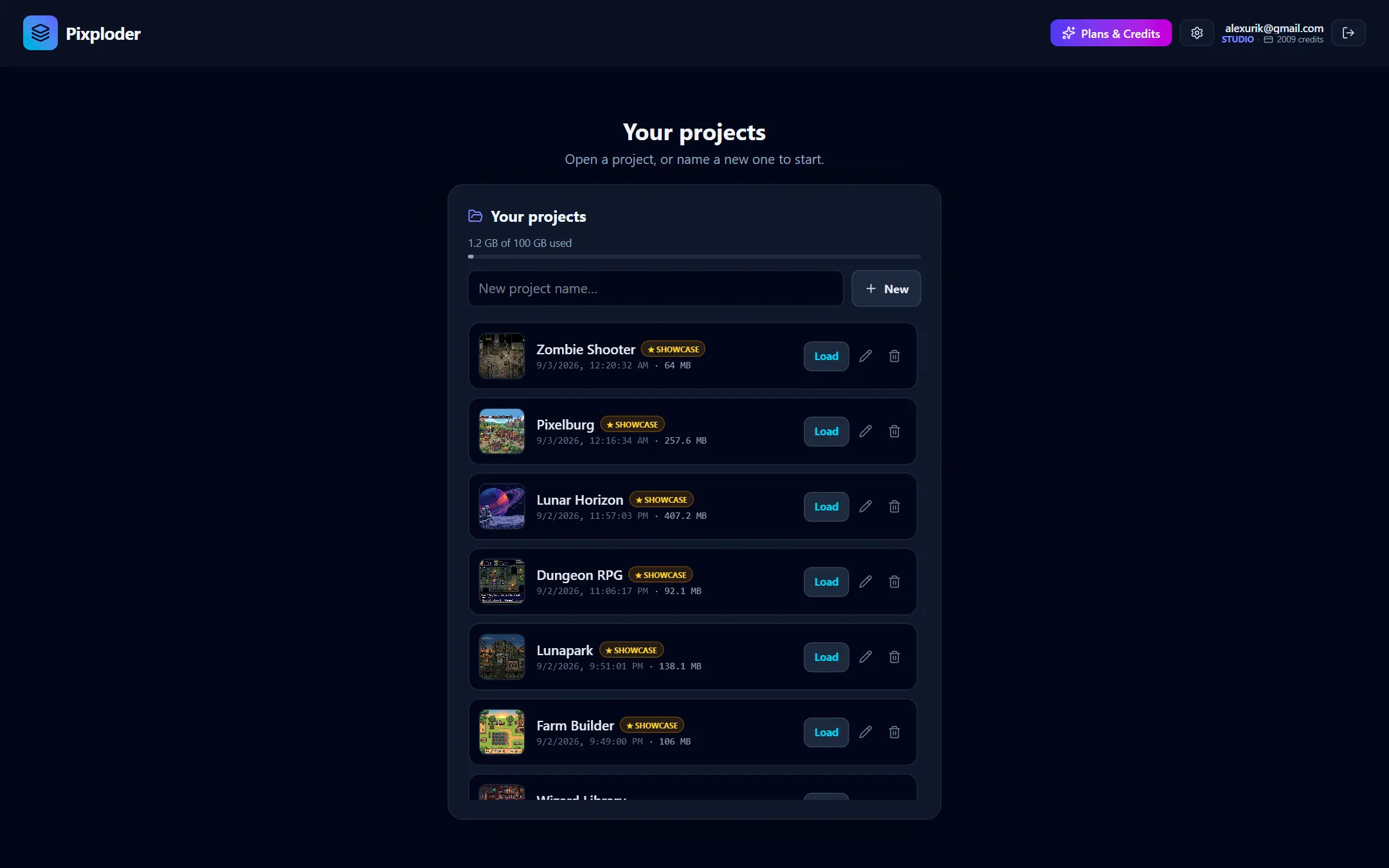
New project name…— the field above the list names the project you are about to create. Leave it empty and Pixploder files it asUntitled project.New— creates a fresh, empty project and drops you into a blank Step 1.Loadon any row — opens that project instead, so you can jump straight back into old work without passing through a blank editor.
The editor does not remember which project was last open. Reloading the tab drops you on the landing page, and Open the editor there brings you straight back to this screen — Load the project you want and carry on where you stopped.
The gate carries its own account cluster: your email, plan, and credit balance, a Buy credits / Upgrade button (Plans & Credits on a paid plan), and sign-out. Whatever plan banners apply to your account run across the top of this screen as well, so a payment problem or a deletion date is visible here and not only inside the editor. Clicking the Pixploder logo returns you to the landing page.
Note. If a sky-blue strip reads Diagnostic saving is on for this account., then while it is on, every AI request made from your account — the images sent, the exact prompt and settings, and the AI's reply — is recorded so a fault can be diagnosed, for successful generations as well as failed ones. The strip states that those copies are private and are never used to train anything, links to the Privacy Policy for how long they are kept, and its ✕ hides it until the next time the tab loads. Most accounts never see it.
The Projects panel
Inside the editor, the header's Projects button opens the same panel as a window over the canvas; the ✕ (Close) in its top-right corner dismisses it. The heading reads Your projects. One text field feeds two create buttons, and below them every project you own is listed most recently saved first — each row a thumbnail, the name, and the local date and time of its last write. The row you currently have open carries a small open badge. Whenever the panel is working — fetching the list, creating, forking, renaming, deleting — a thin indigo bar sweeps across the top of the card, and anything that fails prints a rose message under the buttons. With nothing saved yet the list reads "No saved projects yet. Name one above and click New", and it names Save current beside it whenever a working image is open.
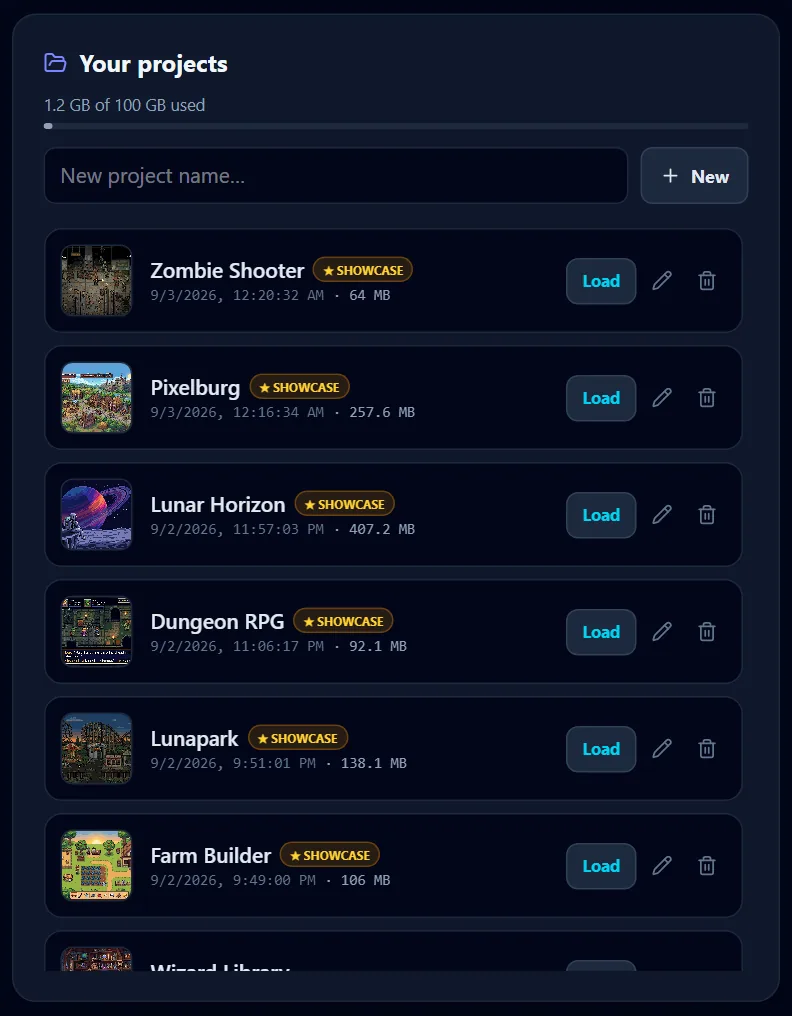
Everything you can do to a project lives in that one card:
New— wipes the editor to a blank Step 1 and starts a brand-new empty project, which autosaves a moment later. There is no confirmation, but nothing is lost: the project you were in keeps everything autosave has already written, and you get it back by loading it again.Save current— forks the work on screen into a brand-new project, saves it immediately, and switches you into the copy. It appears only when a working image is loaded.Load— downloads that project's stored images and opens it in place of whatever is open now.- Rename (the pencil) — turns the row into a name field with a green check (
Save name) and an ✕ (Cancel). A blank name keeps the old one. - Delete (the trash) — permanently removes the project and its stored images, after a confirmation.
Each row also carries the space that project is using, in small mono type next to the date — · 12.3 MB. Hover it to read how many stored files that is. The figure is a nicety rather than a guarantee: a project with no counted size shows no figure at all rather than a misleading 0 B, and a slow connection can leave every size blank while the list itself still works.

Note. Save current always creates a new project — a snapshot, not an overwrite. It captures the document as it is at the click, creates the row, switches you onto it, and then uploads every asset in the document into it, so a big scene takes a moment. It is a real copy in storage rather than a link, so the original and the fork drift apart independently from that moment on, and the fork counts against your storage. The project you already have open is kept current by autosave, not by this button, so reach for Save current when you want to branch: right before a risky change, or to keep two endings of the same scene.
Careful. Delete is permanent. The confirmation reads Delete project "NAME"? Its saved images are removed too. — the row and every image stored under it are erased from the cloud, with no undo and no trash. Deleting the project you have open spells that out separately, warns that it closes the editor and discards the current work, and drops you back on the project gate.
Loading a project
Load is the one project action with a progress readout of its own. An indigo card appears reading Loading "NAME"… with a live done / total count and a bar that fills as each stored image comes down — it sweeps indeterminately for the first moment, while the count is still being worked out, then tracks the real percentage. The panel closes itself once the load returns. If it fails, a Heads up dialog says "Couldn't open that project:" with the reason, the panel stays open, and the project you were in is untouched.
Loading replaces everything on screen, and a few things are deliberately not restored: nothing is selected, and Step 2's extend margins start clean, so the canvas opens unframed. Otherwise the project comes back as you left it, including the step you were on.
Careful. Do not switch projects while an AI action is still running. Opening or creating another project fences the old one off, so a result that arrives afterwards is thrown away — and a run that reached the AI has already been paid for. Wait for the generation to land, or to fail, before you leave.
Autosave
While a project is open, Pixploder saves it for you. Any change to its contents — the current step, sprites and groups, the Step 5 call plan and its guidance templates, mask and key settings, background layers and takes, extend takes, shadows, palettes, prompts, model choices, tags, saved images, the Step 7 Repixelize settings, and the rest — starts a short timer, and about 1.5 seconds after your last change the whole project is re-serialized and written to the cloud. A fresh AI result skips the timer and is written at once, so a new generation survives even an instant reload.
One thing is deliberately kept out of the triggers: selection. Which sprite is highlighted never starts a save of its own, so clicking around Step 5 costs nothing — and a project always reopens with nothing selected.
The header shows the open project's name followed by a live status word, on every screen width:
| Word | Meaning |
|---|---|
unsaved changes… | An edit is in memory that the saved copy does not have yet — the timer is running. |
saving… | A write is in flight. |
saved | The saved copy matches what is on screen. |
save failed | The last write did not land. The reason prints in full under the header controls. |
A project you have just created runs through unsaved changes… and saving… before it settles on saved; one you have just loaded reads saved straight away.
Tip. There is no manual save, but you are not left to guess either: if you close the tab while a save is pending, in flight or failed — or while a generation is still running — the browser raises its own leave-the-page prompt, in its own wording. Leaving anyway really does discard whatever had not reached the cloud, so the safe habit is still to glance at the header for saved before you go.
When two windows edit the same project
Open the same project twice — a second tab, a second machine — and both windows save into the same row. Most of the time they sort it out silently. When the two have genuinely diverged, the window that saves second raises This project was changed in another window. and explains the trade in one line: only background takes are merged; sprite generations, scene generations and extend takes from the other window are replaced by this window's.
Load those changes— keeps the other window's version of that work.Overwrite with my version— keeps this window's.Decide later — neither version is applied— changes nothing now. This window keeps what is on screen, and your next edit here saves it over the other window's.
Nothing is auto-focused and Escape is not wired to this dialog, because a reflex keypress here could throw away a sheet you paid for. Read it, then answer it.
When a save fails
The first failure on a project also raises a Heads up dialog beginning "Your work is NOT being saved.", which Got it dismisses — after that the header word carries it, so a retry storm cannot spam you. The messages worth recognizing:
- The project was deleted somewhere else.
This project was deleted (possibly on another device), so nothing can be saved to it anymore. Use Projects → "Save current" to keep this work as a new project.This one is permanent: Pixploder stops writing to that row entirely, so do exactly what it says — openProjectsand pressSave currentto land the work on screen in a fresh project. - The project is too big.
This project is too large to save (the limit is 8 MB of project data).That ceiling is on the project's description — its steps, settings and history — not on its images. The dialog points where the weight usually is: Step 5's run history and Step 4's takes. - You are out of storage.
You're out of storage space. Delete a project you no longer need to free space.The dialog carries aManage projectsbutton that opens the panel, which is the only place that frees space. - Your plan could not be confirmed.
Couldn't confirm your plan — saving is paused. Reload the page.Usually a transient hiccup reading your account; reloading clears it. - Another window kept winning the race.
Another window kept changing this project while this save tried to merge into it. Nothing was lost — your work is still open here and keeps retrying.It converges the moment the other window pauses.
Anything else prints the underlying error, which is usually a network blip. Saving retries on your next change, so a small edit triggers another attempt.
What a project stores
Projects live in a private, per-user cloud store rather than in this browser. You only ever see your own projects, and no image in that store has a public address — even the thumbnails in the Projects panel are fetched through short-lived private links. To keep stored data small, Pixploder saves the sources it cannot rebuild and re-derives the rest when a project opens:
- Stored — your uploads and the working image; the scenes you generated in Step 1; every raw sprite version, from the plain crop that is version one to the AI results after it, which is where your generation history and picks live; the masks and fill zones behind your cut-outs; the whole picture each Step 5 run returned; AI backgrounds and their raw output; extend takes, with the base and the raw output behind each; the fills you painted in the repair window; every image you took with
Save (download + keep in project); and the cut-outs that cannot be cheaply rebuilt — reconstructed sprites, sprites masked by hand or by the AI, any sprite whose pick is a generated version, and any sprite carrying an applied fill or edge repair. - Re-derived on load — the color-keyed cut-out of a sprite that is still showing its original version, was not masked by hand or by the AI, and carries no repair. Pixploder re-runs the keyer with the exact settings that produced that image rather than storing the result.
Raw versions are kept on purpose, so a project with a long generation history is legitimately larger. Each project also records which of its stored images is the thumbnail for its row: the working image, or else the generation you have selected, or the newest one, or the rebuilt background.
Stored images are content-addressed — the file name is a hash of the pixels — so re-saving an unchanged picture is a no-op, and a per-session cache skips re-hashing what you already uploaded. Two consequences are worth knowing. Handing one sprite's result to another with + use another sprite's result in Step 5 · Finish Sprites costs no extra storage, because the copied version is byte-identical to the original. And re-keying a sprite that still shows its original version never inflates a project, because that cut-out is re-derived on load anyway. Only genuinely new pixels cost storage.
Storage, and what happens when it fills
You can save any number of projects on every plan. What is capped is the space they take:
| Plan | Project storage | Stored files |
|---|---|---|
| Free | 1 GB | 50,000 |
| Pro · Studio · trial · Paused | 100 GB | 2,000,000 |
GB here is decimal (1 GB = 1,000,000,000 bytes), which is the figure the app prints. The file count is the second, quieter ceiling — one file per stored image — and it only binds for projects made of very many very small pictures.
The panel states your usage in plain numbers whether or not anything is wrong, in a line such as "0.8 GB of 1 GB used", with a bar under it. The bar is neutral gray below 80 %, amber from 80 %, and rose from 95 %. When the file count is the tighter of the two ceilings and has reached 80 %, the line adds it: "· 49,500 of 50,000 files".

At 100 % the line adds Delete a project you no longer need to free space., and the panel stops you at a clean boundary rather than mid-scene: New and Save current refuse with Nothing was created — there is no room for another project. or Nothing was saved — there is no room for another project. The cap itself is enforced where images are written, so a run that is already under way fails on the upload with the out-of-storage message described above.
Deleting a project frees its space, and the number in the panel moves as soon as the delete returns. If some of your space belongs to projects that no longer exist, the panel says so under the bar — "…of that is held by files from projects you have already deleted. It is cleared during routine maintenance" — with a support address to write to if you need it freed sooner. In the corner case where you are full and the list is empty, because all of that space belongs to projects that are already gone, the panel replaces the list with that explanation and the same address.
Careful. If a paid plan ends while you are holding more than a gigabyte, the cap drops underneath you and the account effectively goes read-only: reads, exports and deletes keep working, saves do not, because every edit writes new images. The panel says so in its own words there — resubscribe to keep saving, or export before the retention window closes. Deleting a project is the wrong advice in that case and the app does not give it.
How long projects keep
Any signed-in account can create, save, and load projects — cloud saving is not restricted to paid plans. The catch is retention. When a Free user creates their first project, a 14-day clock starts; when it runs out, that account's projects are deleted unless it has subscribed by then. The same clock arms itself when a paid subscription ends: cancel, or let a plan lapse, and once the period you paid for is over you land on Free with 14 days to decide. Any paid plan — including the $1.90/mo pause — clears the clock and keeps your projects indefinitely.
You are told twice before it happens. Three days out, Pixploder emails you: "Your Pixploder projects will be deleted in 3 days", naming the date and pointing at the two ways to keep them. And while the clock runs, a rose banner sits across the top of every screen, the project gate included: "⚠️ Your saved projects will be deleted on <date>. Resubscribe to keep them, or export them now." with a See plans button that opens pricing. The deletion pass will not run against an account that was never warned — it moves the date out instead and lets the next warning go first.
A subscriber who has cancelled but not yet expired sees the amber warning earlier, with their own plan name in it: "⏸ Your PRO ends <date> — then saved projects are deleted around <date>. Keep them: resume, or pause for $1.90/mo." That one carries a Keep my projects button. A payment that did not go through gets its own amber banner — 💳 Your last payment didn't go through…, with an Update payment button — because a bounced payment is what puts a plan on the road to that clock in the first place.
If you are only taking a break, pausing beats cancelling: the Plans & credits modal offers Keep your projects for $1.90/mo, which keeps every project safe and fully editable at the full 100 GB while monthly AI credits stop and bought credit packs keep working. Delete account (permanent) in the same modal's danger zone goes the other way and takes your projects, saved images, and remaining credits with the account. Both are covered in Credits & plans.
Free projects, in short, are not permanent. Before the date in the banner, do one of three things — subscribe, pause instead of cancelling while you still have a plan to pause, or export the work you want to keep from Step 8 · Preview & Export. A file already on your disk survives whatever the account does next.
Signing out, and working from more than one machine
Sign-out is the icon button at the right of the header, titled Sign out. It ends the session and drops you back to Sign in to start, and it stops autosave with it — so let the header read saved before you go.
Because projects live in your account and not in the browser, signing in from another machine gives you the same list. Two rules make that comfortable:
- Open a project in one place at a time when you can. Two windows on one project both save into it, and the second one to write may have to ask you the conflict question above.
- A project deleted on one device is gone everywhere. Another device still holding it open cannot save to it any more and says so;
Save currentis the way to rescue what is on that screen.
Careful. Replacing the image starts the project over. ↺ Replace image in Step 1 · Source Art opens a Replace image — start over? confirmation that lists everything it clears, and because autosave writes the now-blank state seconds later, an amber line warns that your saved project "is overwritten with the blank state right after — its current contents can't be recovered." If you might want the old version, fork it with Save current first, then press Wipe & start over.