Credits & plans
Everything Pixploder asks the AI to do is paid for with credits — one currency for generating a scene, filling an extended canvas, naming and cutting objects, rebuilding what was hidden, and repainting a background. Everything you do by hand is free on every plan, including Free: uploading art, importing a PSD, drawing masks, color-keying, shadows, the Final Polish passes, and every export. The AI always runs on Pixploder's own keys and every call is metered, so a credit buys the same thing whatever plan you are on. This page is the whole money story in one place — each pipeline step also carries its own Costs callout for the actions on that screen.
Costs. Only AI actions spend credits, and each one prints its price before you click: a cr chip beside Find Objects, Extend canvas · N credits on the extend button, Generate take · N cr in Step 4 · Rebuild Backplate, ⚡ Generate all · N calls · M cr in Step 5 · Finish Sprites. Your live balance sits in the top-right account cluster, a confirmation dialog names the cost before anything is charged, and a failed run comes back to your balance — in full when the AI was never reached, minus a single credit when it had already started. Everything else in the editor costs nothing.
What a credit is
A credit is a unit of AI work, not of time or of output size. The server prices every request before it runs, reserves that many credits from your balance, calls the AI, and settles up afterwards. You always hold two buckets:
- Monthly allowance — the credits a subscription grants at the start of each billing period. They reset at renewal and do not roll over.
- Bought + gifted — credits from a one-time top-up pack (or granted by support). These survive the monthly reset and expire on their own schedule.
When you spend, the server draws the monthly allowance down first and only then dips into bought credits, so a pack outlives the reset. Refunds go back into whichever bucket they came out of.
What spends credits
Every paid control carries its price. Prices below are what the code computes today; the button on screen is always the authority.
| Where | Control | What it costs |
|---|---|---|
| Step 1 · Source Art | Generate · N credits | one image generation — 10 cr on the recommended model, 25 cr on either of the other two |
| Step 2 · Extend Canvas | Extend canvas · N credits | one image generation |
| Step 2 · Extend Canvas | ↻ Re-roll extend · N credits, ↻ Roll new variant (W×H) · N credits, ↻ Roll variant · N cr | one image generation each |
| Step 3 · Find & Cut | Find Objects (Find More Objects after the first pass) | the analysis model's price — 1 cr, 2 cr or 4 cr |
| Step 3 · Find & Cut | Segment N tags (M cr), Segment N new tags (M cr), Find more "<tag>" (M cr), Find more · N tags (M cr), Find more · all tags (M cr), ↻ Re-segment all from scratch (N cr) | one credit per tag in the run |
| Step 3 · Find & Cut | Mask N boxes (1 cr), or + N boxes riding along on one of the labels above | one credit for all the boxes you drew, as a single batch |
| Step 3 · Find & Cut | Sweep Leftovers · SAM 2 | flat 3 cr per sweep, whatever the Detail rung |
Edit mask · ✨ AI mask | ✨ Re-mask | 1 cr per run, on every option the Engine picker offers |
Edit mask · ◱ Split | AI carve, then ▶ Run split preview / ↻ Re-run | 3 cr per carve |
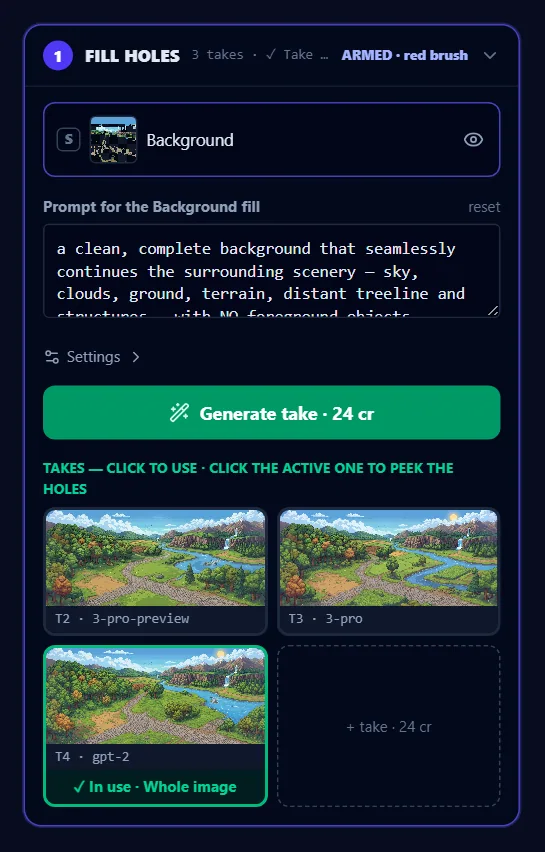
| Step 4 · Rebuild Backplate | Generate take · N cr, + take · N cr | one image generation each |
| Step 4 · Rebuild Backplate | Generate this region · N cr, Regenerate this touch-up · N cr | one image generation each |
| Step 4 · Rebuild Backplate | the LaMa · 1 cr fill method | 1 cr — a prompt-free fill, not a full generation |
| Step 5 · Finish Sprites | ⚡ Generate all · N calls · M cr and its twin ⚡ Generate · N calls · M cr | one image generation per call — the price is the sum |
| Step 5 · Finish Sprites | ⚡ Generate N picked · M calls · K cr (hand-pick) | the same, over the picked set only |
| Step 5 · Finish Sprites | Run again · N cr | re-sends a finished run's sprites — one generation per call |
| Step 5 · Finish Sprites | the ↺ at the end of the Versions of <name> strip | re-rolls that one sprite on its own — one image generation, priced in the confirmation rather than on the icon |
| Repair window | Fill mask with the LaMa engine — see Sprite repair | 1 cr per press, however many holes the mask covers |
What each model costs
Image generation is the expensive bucket, and its exact price depends on which model you pick. Steps 1, 2 and 4 put an AI model picker beside the generate button; Step 5 keeps the same choice as the model row inside the section's ⚙ and inside a past run's Run again drawer. Every option in those lists carries its own price inside its label, followed by a short tag, so you can see what a switch costs before you spend it:
| Kind of request | What the picker offers today |
|---|---|
| Image generation on Steps 1, 2 and 4 (scene, extend, background) | three options — the one tagged · recommended at 10 cr per image, and two big ones at 25 cr each. All three run every one of those three steps, so the same picker serves them all |
| Image generation on Step 5 (sprite sheets) | those same three, plus a cheaper fourth at 4 cr tagged · budget. The · recommended tag sits on the 10 cr one here too |
Scene analysis (Find Objects) | three options — 1 cr, 2 cr and 4 cr. The 1 cr one is tagged · recommended and is the default |
That is the whole shape of the pricing: naming, segmenting and masking are one to a few credits per request; painting new pixels runs from ten up to a couple of dozen.
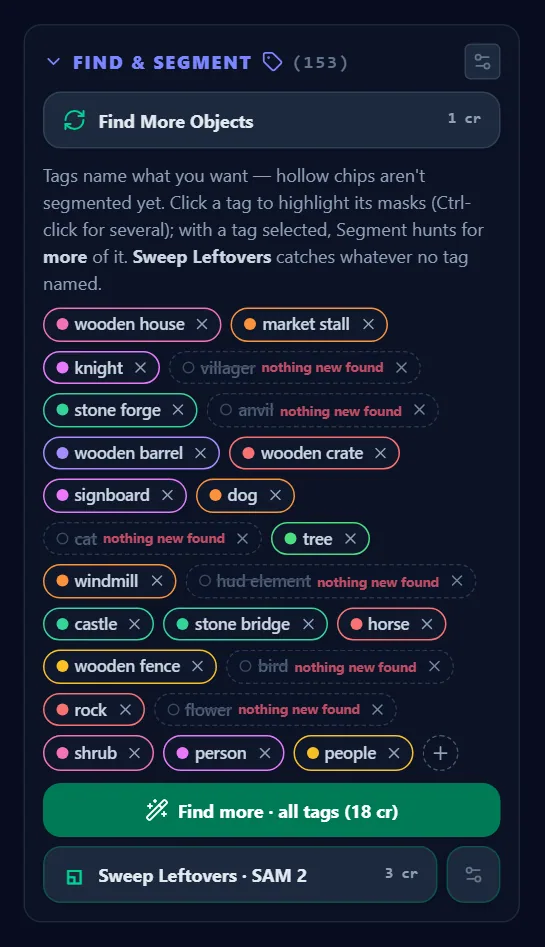
Wherever an image is generated, the price rides in the button itself, so you never have to look it up:
Free, always
- Uploading a PNG, JPG, or layered PSD, and every export format.
Apply crop (free)in Step 2 — a pure crop or shrink asks the AI for nothing.- Drawing and editing masks by hand:
Tap,Element,Brush,Box,Grow 1px,Shrink 1px,Fill holes,⇄ Invert, undo/redo, and the wholeRefine masksection. Where a price would otherwise be expected the editor writesfreeon the button itself — onRefine mask, and on every split method except the paid carve. See Edit mask. - The
Flat colorandPeriod clonefill engines in the repair window, and thePeriod clone · free · instantfill method in Step 4. - The color keyer — see The keyer — contact shadows, Add Shadows, Final Polish, repixelize and bake, the 3D diorama, and Preview & Export. Steps 6, 7 and 8 call no AI at all.
- Comparing and choosing: switching between takes, versions and variants, picking one, and reusing another sprite's result never re-runs the AI.
- Queuing in Step 5. The
↺corner on a result or an approved tile (Re-roll <name> — queue another try) only puts the sprite back in the queue; nothing is spent until you press the Generate button, which prices the whole queue. - Re-arranging a queue:
Split into N calls · M crandRepack into N calls · M cronly re-bin what is queued — the number on them is what running those calls would cost, not what the click costs. Unticking a call in the👁panel takes it, and its credits, out of the next run. See Calls & sheets. Re-cut G<n>in Step 5 re-cuts sprites out of an image the run already stores. Its confirmation says so in as many words:no model call, no credits.
The confirmation before every spend
Before any spend, a dialog titled Use <n> credits? states the cost and your balance — This AI generation will use N credits. You have M. — with a Don't ask again this session checkbox and Cancel / Use <n> credits buttons. Cancel is focused when the dialog opens, so a stray Space or Enter never spends anything.
- Batch actions ask once for the whole sum, not once per call. A Step 5 run that packs into four calls raises one dialog for all four.
- Two dialogs cannot stack. If a second paid action tries to ask while one is open, you get the toast
Answer the credit confirmation on screen first — one at a time.instead of a second dialog. Don't ask again this sessiontakes effect the moment you tick it, and stops the per-action confirmation for the rest of your visit. It comes back after a reload.
Careful. Skipping the confirmation does not skip the spend. With the box ticked, a click on a priced button goes straight to the AI, and no further dialog appears to untick — reload the page to get the confirmations back.
When you run out
There is no nagging low-balance warning. The guard fires at the moment you trigger an action you cannot afford, as a small Heads up dialog:
- Signed out:
Sign in to use AI features. - Short of credits, with your free trial still unused:
This needs <n> credits and your balance is <m>. Start the 3-day Pro trial for <t> credits now (payment details required, $0 today), or buy a one-time credit pack. - Short of credits, with the trial already spent:
This needs <n> credits and your balance is <m>. Buy a one-time credit pack, or move to a monthly plan.
<n> is what the action costs, <m> is your balance, and <t> is the trial's current credit grant — a different number from the other two. The grant is set by the operator rather than fixed in the app, and the offer prints today's figure whenever the app has it; if it cannot be read, the same sentence appears without a figure (Start the 3-day Pro trial now (payment details required, $0 today)…) rather than with a stale one.
Either way the dialog carries a See plans button that opens Plans & credits; Got it dismisses. This is the second place the 3-day Pro trial is offered — turning it down when you signed in costs you nothing, because the first action you cannot afford puts it back in front of you.
The dialog is a courtesy, not the gate. The server checks and reserves credits independently of the browser and refuses any overspend with Out of AI credits. Upgrade your plan or buy a credit pack., so nothing you click can run the AI for free. Nothing is charged for a refused call, nothing breaks, and every take, sprite and mask you already made stays in the project. Top up or upgrade and press the same button again.
Because Free grants no monthly credits, a brand-new Free account meets this notice on its very first AI action until it buys a pack or starts the trial.
When a run fails
Credits are reserved the instant an AI action starts and settled the moment it finishes. What comes back depends on whether the AI provider was actually reached:
- Nothing reached a provider — you keep everything. Refusals that happen before the work starts — signed out, short of credits, a blocked account, a tool that is switched off — never reserve a credit at all. And when a request is reserved but the AI is never called (a validation failure, or Pixploder's own queue giving up while waiting), the whole reservation is handed straight back. Those failure notices carry the words
Your credits were refunded. - The provider had already run — one credit is kept and the rest is returned. A generation that errors out, is safety-blocked, times out, or hands back no image after the call went out costs a flat floor rather than the full price. The message names the split:
You were charged N credits because the AI provider had already run; the other M went back to your balance.A 25-credit sheet that dies in a provider outage costs one credit, not twenty-five. - A batch that half-lands is partly refunded. Segmenting several concepts at once charges only for the requests that actually ran; the status line spells it out as
N requests failed (partially refunded). - A run killed by a server restart or a database blip is reconciled afterwards. If the refund cannot be handed back on the spot, the message says
… could not be returned right now — this is retried automatically and your balance will be corrected within the hour.If even that cannot be arranged, it hands you a request id to quote to support instead. - Results are not lost when a tab is. A generation that was still running when you closed the browser is picked up on your next sign-in for up to 24 hours: successful ones are delivered, and for failures you get a line saying how many were refunded.
The one case that cannot promise you anything is a lost connection: The connection to the server was lost while the AI was still working. The request may have finished and been charged — check your credits before trying again. Check the header balance before re-running that action.
Note. Credit refunds are automatic and have nothing to do with money-back refunds. For a purchase you want reversed, the modal footer links Terms and Refund Policy, which spell out the cancellation and withdrawal rules.
Plans at a glance
| Plan | Price | Monthly AI credits | Project storage | What it is for |
|---|---|---|---|---|
| Free | $0 | none — pay as you go | 1 GB | All the hand tools, PSD import, cloud-saved projects on a 14-day clock; buy a credit pack to run the AI |
| Pro | $9.90 / mo | 400 (~16–80 generations by model) | 100 GB | The standard plan: projects kept for good, full AI, starts with a 3-day free trial |
| Studio | $29.90 / mo | 1,500 (~60–300 generations by model) | 100 GB | Heavy use — its credits line ends - 25% more per credit |
| Paused | $1.90 / mo | none — packs still work | 100 GB | Keeping your projects safe while you are away; reached from the pause offer, not from a signup card |
Free is genuinely pay-as-you-go: it grants no monthly credits, so the only way a Free account runs the AI is a credit pack. Pro and Studio each drop their allowance into your account every billing period, and Studio is the better rate per credit. Paused is a retention plan rather than something you sign up for — it appears as an offer when you already have a subscription and are thinking about leaving, and like Free it can still spend packs.
The landing page's Simple pricing cards each start the thing they name. All three open the sign-up screen first — none of them asks for money there — and each one remembers which card you pressed:
Create a free accountleaves you on Free, with credit packs when you want the AI.Start free trialcarries the trial through the sign-up: as soon as you are signed in, the trial offer is the first screen you see.Choose StudioopensPlans & creditswith the Studio card ready to buy.
Payment details are only ever entered on the secure checkout the payment provider hosts, which is where every subscription and every pack is actually bought. Inside the app, Plans & credits shows Pro and Studio as subscription cards; Free is simply the no-subscription state.
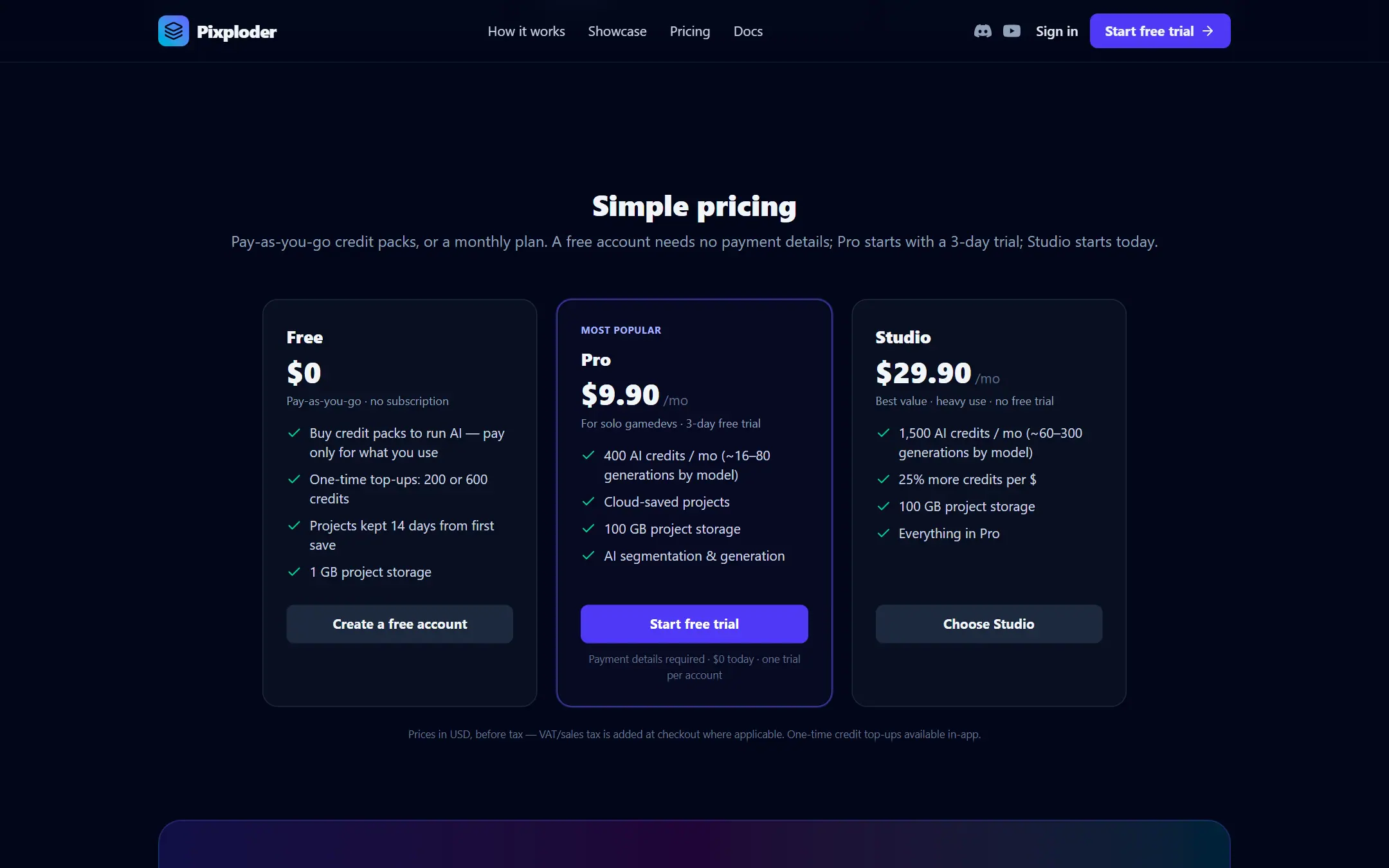
The modal opens with one honest line about your account — Free accounts keep saved projects up to 14 days after your first save and hold 1 GB of project storage; paid plans keep them for good, with 100 GB. You're on <PLAN>. — and below it every card is labeled for the situation you are in. With no subscription the Pro card reads Start 3-day free trial while your account still has its trial, captioned ✨ Starts with a 3-day free trial · payment details required · $0 today · one trial per account, and plain Get Pro with no caption once the trial is spent — beside Get Studio, which never carries a trial. The rest of the labels follow your subscription: Current plan on the tier you are already on, Upgrade to Studio with Applies immediately (prorated), Downgrade to Pro with Takes effect at period end, Scheduled ✓ on a change you have already queued, and Applying… on one whose payment has been taken and is still landing.
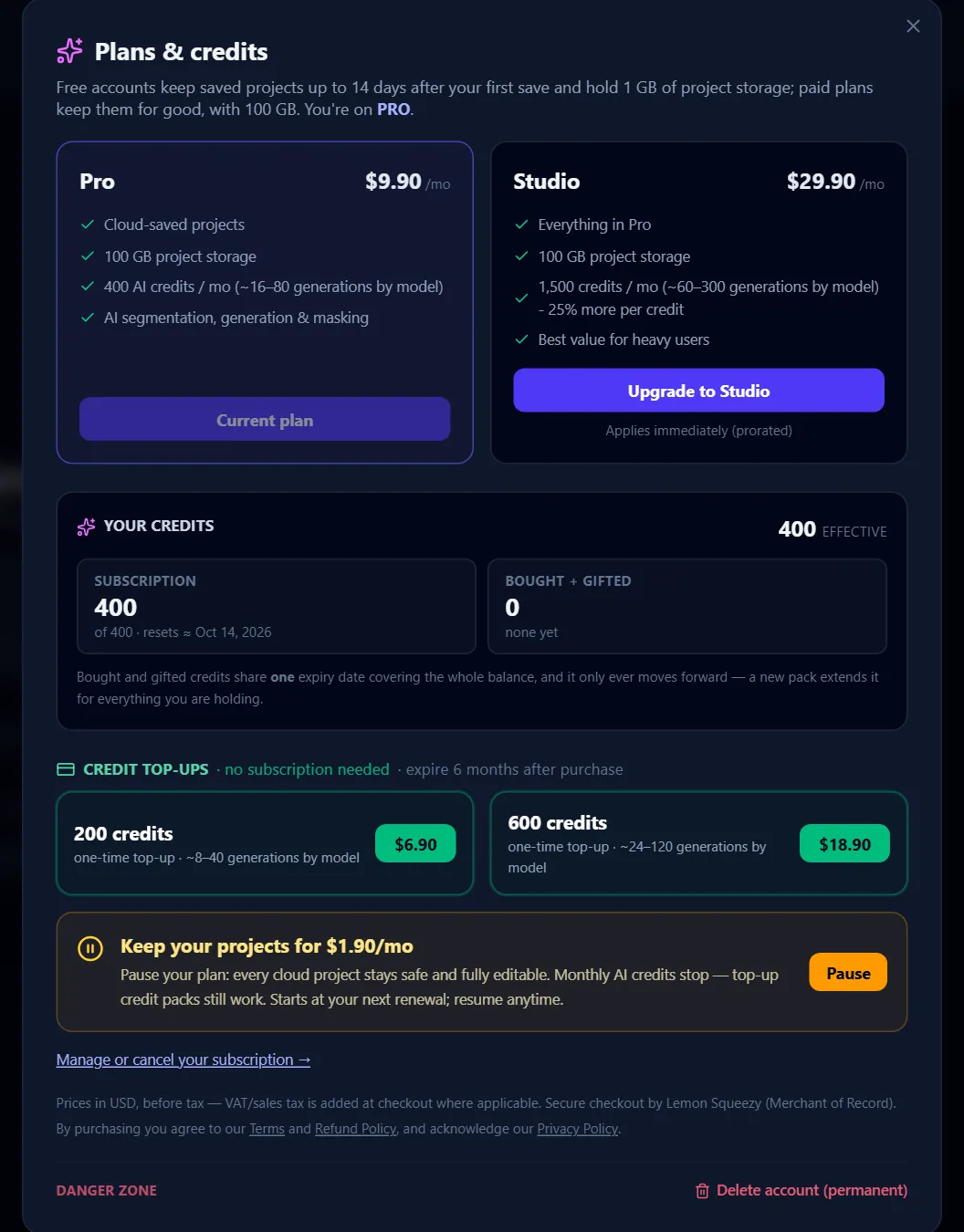
Prices are in USD before tax; the modal's own footnote opens Prices in USD, before tax — VAT/sales tax is added at checkout where applicable. and then names the external payment provider that takes the money. That provider is the Merchant of Record: checkout is hosted on its pages, and it issues your invoice and processes eligible refunds.
Careful. Monthly allowance credits reset each billing period and do not roll over — whatever you have not spent by renewal is gone. Bought pack credits are a separate balance and last much longer. The one exception is the free trial: what you have not spent is never lost — it is added to your first paid month when the trial converts, and it stays on your account as pack-style credits if you cancel instead — see Your unused trial credits are not lost below.
Your credits, in one panel
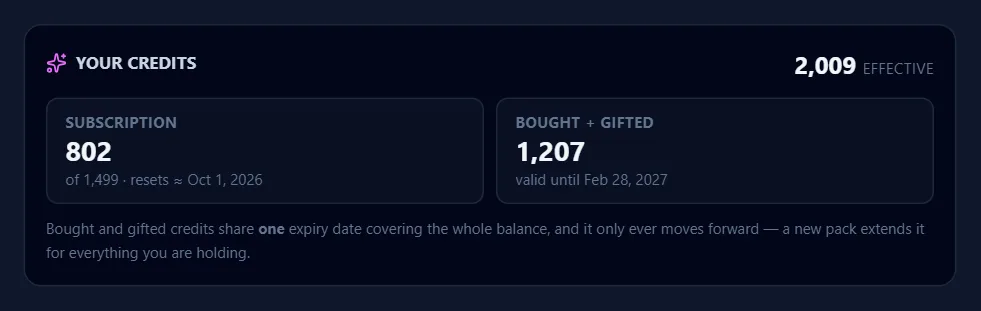
Under the plan cards, Your credits shows all of it at once: the total as <n> effective in the heading, then up to two boxes.
Subscription— what is left of this period's allowance, printed as<left>overof <allowance> · resets ≈ <date>. A Free account has no monthly bucket at all, so this box is simply not drawn.Bought + gifted— your pack balance, withvalid until <date>, orexpiredstruck through, ornone yet.
Underneath, the rule that catches people out: Bought and gifted credits share one expiry date covering the whole balance, and it only ever moves forward — a new pack extends it for everything you are holding.
Credit packs (one-time top-ups)
| Top-up | Price | The card's tagline |
|---|---|---|
200 credits | $6.90 | one-time top-up · ~8–40 generations by model |
600 credits | $18.90 | one-time top-up · ~24–120 generations by model |
Packs are one-time purchases that stack on top of any monthly allowance, listed under Credit top-ups · no subscription needed in the Plans & credits modal; the price on each card is also its buy button. They are the only way a Free or Paused account runs the AI, and they work on Pro and Studio as a reserve. The section header states the rule — expire 6 months after purchase — and every new top-up pushes that single date six months out for your whole bought balance.
Tip. Because packs are only touched after the allowance is empty, buying one mid-month wastes none of the allowance you already paid for.
Your balance in the header
Signed in, the top-right account cluster always shows where you stand. On a wide screen it reads as your email with one line under it carrying your plan in capitals and then <n> credits; hover that line and, when part of your balance is bought credits, a tooltip says <n> purchased credits expire <date>. On a phone the email block disappears and the balance collapses to a compact chip showing just the number, with your email, plan, and the same expiry line in its tooltip. The last control in the cluster is the sign-out icon (Sign out); account deletion is not here — it lives inside the billing modal.

Next to it sits the billing button that opens Plans & credits from any screen. It reads Upgrade in the editor and Buy credits / Upgrade on the projects gate while you are on Free, and Plans & Credits on any paid plan. The balance refreshes after every metered AI call.
Note. The header figure is the raw stored total. Your credits inside the modal is the one that excludes an expired pack, so between the expiry date and your next spend the header can read higher than the modal. The modal's number is the spendable one.
Coming back from a successful checkout, the app shows Payment received — activating your plan… your credits appear here as soon as it lands (usually a few seconds). and then 🎉 Payment complete — your plan is active. If the plan has not appeared within a minute you get a line telling you to reload and contact support if the credits are still missing — nothing is lost either way. Land back without a session — a different browser, or one that signed you out while you were on the provider's pages — and you arrive on Sign in to start with the notice Payment complete — sign in with the same email and your credits are on the account. instead. The purchase is on the account either way.
The 3-day Pro trial
Pro starts with a free trial, and the offer is the first thing you meet once you are signed in — it does not wait for you to open a project. A signed-in Free account that still has its trial and has not dismissed the offer gets the modal Try Pixploder Pro free for 3 days, listing what it unlocks: <t> trial credits to start right away (the same grant as above, and the same wording without a figure when the app cannot read it), Full sprite detection + reconstruction, and Cancel before day 3 and pay nothing — unspent trial credits stay with you. Start free trial begins it through secure checkout — payment details are required to start it, nothing is charged during the trial — under the footnote Nothing charged today · cancel any time before day 3 · $9.90/mo plus tax after · one free trial per account.
Declining costs you nothing and does not take the trial away. Continue with Free — you can start the trial later from Plans & credits says so in its own label, and the ✕ in the corner (Close — decide later) and Esc do the same thing more quietly. Once declined, the modal does not come back for that account in that browser — but the trial itself does: it waits on the Pro card in Plans & credits as Start 3-day free trial, and it is offered again the first time an AI action stops you for want of credits.
During the trial your plan reads TRIAL in the header and your balance starts at the trial pool, whatever the offer named. The credit pill beside the plan is your remaining balance, so it drops as you spend and includes any pack credits you hold; Plans & credits breaks the same balance out as <left> of <pool> under SUBSCRIPTION, and shows a green banner with the date, ⏳ Free trial ends <date>. Cancel before then and you won't be charged — and the trial credits you haven't spent stay on your account., and a Cancel trial link beside it. The Pro card is marked Trial → Pro because that is the track you are on, and the Studio card offers Trial → Studio with the caption Converts to Studio at trial end — nothing charged today if you would rather land on the bigger plan. Either way, the switch is free until the trial ends.
Your unused trial credits are not lost
When the trial converts, whatever you have not spent is added to the new plan's monthly credits — it is not replaced by them. Reach the conversion with 13 unspent trial credits and the first Pro month starts at 413: Pro's 400 plus the 13. The same holds if you switched track to Studio: 1,500 plus what is left. This is the one exception to "monthly credits do not roll over" — it applies to the trial pool, once, at conversion, and never to a plain renewal.
The trial credit pool itself exists only if you start with the trial. Subscribing to Pro directly gives you Pro's 400 and no trial pool, and a second trial on the same account is granted no credits at all.
And if you cancel instead, the same rule holds the other way round. When a cancelled trial ends, whatever you have not spent moves to the balance bought packs use: it shows in the header on Free, is spendable on any AI action, and lasts 6 months like a pack. Nothing is charged, and nothing you had is taken away. The Before you cancel… screen tells you the exact number before you go anywhere.
Starting your plan early
You do not have to wait out the three days. The green trial banner carries Upgrade to Pro now and Switch to Studio now beside the Cancel trial link, captioned first month charged now · your unused trial credits carry over.
Both open the same confirmation panel every other paid change goes through — Start PRO now and end your trial — and it shows what you get and what it costs before anything is charged: the full month's credits, the note that your unused trial credits carry over on top of them, and the price with your first month · estimate. Nothing happens until you press End trial & pay; Back leaves the trial exactly as it was.
The charge is taken as soon as the payment provider processes it rather than on day 3, and the plan starts immediately — the app shows Ending your trial — <PLAN> is starting… while it lands, then ✓ You're now on <PLAN> — your new allowance is active, and your unused trial credits came with you. If a change is already scheduled (a switch to Studio or a pause), the two buttons are hidden until you undo it with the amber banner's Undo — continue to Pro.
Tip. Ending the trial early only makes sense if you want the bigger balance now — waiting costs nothing and keeps the same credits either way, because they carry over.
Careful. If you do not cancel before day 3, the trial converts to a paid Pro subscription automatically at $9.90/mo and renews monthly until you cancel. Canceling before then costs nothing, and your unspent trial credits stay on your account. One trial per account — a second one is granted no credits.
Changing plans: upgrade, downgrade, pause, cancel
Every plan change happens in the Plans & credits modal, and for an existing subscriber the cards modify the same subscription rather than starting a second one. Only one change can be pending at a time.
- Upgrade — the card reads
Upgrade to StudiowithApplies immediately (prorated), but clicking it does not charge anything yet. It opens a confirmation panel,Confirm your switch to STUDIO, which replaces the plan grid so the figures cannot be scrolled past. The panel shows two numbers before your payment details are touched: a green+N creditsbox, captionedApproximately this many, added to this billing period the moment the payment lands — we grant them, and the exact figure is worked out from the days left at that moment., and a≈ $X.XXbox captionedcharged today · estimatewithYour payment provider calculates the final amount and it may differ slightly with tax or rounding.underneath. If the amount cannot be worked out it readsAmount unavailableand the confirm button is disabled rather than showing $0.00. Three lines below spell out the rest: your credits already used this period stay counted and your renewal date does not move; how many of the period's days are left; and that from your next renewal you get the full monthly allowance at the full price.Confirm & paygoes ahead;Backleaves everything as it was. You are never charged without seeing both figures first. While the payment is being applied the banner saysPayment taken — <PLAN> is being applied to your account now.and offers no undo, because the payment has already been taken. - What an upgrade grants — the difference between the two plans' monthly credits, pro-rated over the time left in your billing period, rounded down. Upgrade with a third of the month to go and you get about a third of the difference: from Pro (400 a month) to Studio (1,500) with eleven of thirty days left, that is 403 credits on top of what you already had, for about $7.33. The days are counted against your real period, not a flat thirty. Only the allowance goes up, and the new credits land the moment the payment does.
- Downgrade —
Downgrade to ProwithTakes effect at period end. This one is a single click with no confirmation panel, because nothing is charged or refunded today. An amber banner then appears at the top of the modal:Scheduled: switch to <PLAN> on <date>. You keep <PLAN> and its credits until then. - Pause — the amber box
Keep your projects for $1.90/moand itsPausebutton park the subscription from your next renewal: every cloud project stays safe and fully editable, monthly AI credits stop, and top-up packs keep working. Once paused, the plan cards readResume on ProandResume on Studio. - Cancel —
Manage or cancel your subscription →first opens theBefore you cancel…screen, which spells out the consequence before you go anywhere. On a running subscription no end date exists yet, so it readsYou keep <PLAN> until your current billing period ends. After that your account drops to Free and your cloud-saved projects are deleted about 14 days later, unless you come back. You can export anything before then.; during a trial, or once a cancellation has fixed the dates, it names them instead — and during a trial it adds that your unspent trial credits stay on your account as pay-as-you-go credits, with the number. It repeats the pause offer asKeep projects — Pause $1.90/mo, and then hands you to the external billing portal withContinue to Manage billing.Keep my <PLAN> — never mindbacks out. The portal opens in a new tab; the cancel itself happens there.
Canceling keeps your access until the end of the period you already paid for, then the account drops to Free. Until that date a rose box in the modal, Your subscription is cancelled, offers one-click recovery: Resume <PLAN>, or Keep projects — Pause $1.90/mo, with or manage in the billing portal → underneath. While a subscription is canceled the plan cards are locked — resume first, then change plans.
Tip. A scheduled downgrade or pause is reversible right up to the moment it lands: press Keep <PLAN> in the amber banner (during a trial the same link reads Undo — continue to Pro) and you stay exactly where you are, credits and all. The app confirms it with Scheduled change cancelled — you'll stay on your current plan.
When billing goes wrong
- A payment that did not go through raises an amber banner across the top of the editor —
💳 Your last payment didn't go through. Your <PLAN> plan keeps working for now, but unless it's fixed your monthly credits stop at the next renewal and your saved projects are removed later. Credits you bought as packs are unaffected.— with anUpdate paymentbutton that opens the billing portal. Once the plan has actually lapsed the same banner reads💳 Your last payment didn't go through, so your subscription has ended. Update your payment details to get your plan back — credits you bought as packs are unaffected. - A paid plan with no subscription we can find shows a rose notice instead of the management buttons: your credits are safe, top-ups still work, and it points you at
[email protected]with your account address. - A change the server will not make is refused with the reason rather than a generic error —
Your subscription is cancelled — resume it first in Plans & credits, then change plans.,There's an unpaid or refunded charge on your subscription. Open “Manage billing”, sort the payment out, then change plans., orA switch to <PLAN> is already scheduled. Cancel that change first, then pick a new plan.The same ladder guards the confirmation panel, so you learn a change is impossible before you authorize it, never after.
Projects, plans, and the deletion clock
Saving is free on every plan, but how long a saved project lives is a plan question, so it belongs here:
- On Free, the clock starts when you save your first project and runs 14 days. A rose banner counts it down —
⚠️ Your saved projects will be deleted on <date>. Resubscribe to keep them, or export them now.— with aSee plansbutton beside it. - After a paid plan lapses, you keep everything until the period you paid for ends; the account then drops to Free and the same 14-day window starts. An amber banner warns ahead of time:
⏸ Your <PLAN> ends <date> — then saved projects are deleted around <date>. Keep them: resume, or pause for $1.90/mo., with aKeep my projectsbutton. - Starting or resuming any paid plan clears the clock, and Paused counts — that is the entire point of the $1.90 tier.
- Exports are yours regardless. A PSD, sprite sheet, or engine package on your own disk is untouched by any of this, and exporting never costs credits.
How much you can store is a plan question too: a Free account holds 1 GB of project files, every paid plan — Pro, Studio, the 3-day trial, and the $1.90 pause — holds 100 GB, and the number of projects is not limited on any of them. The projects screen prints where you stand as a plain figure, in a line such as 1.6 GB of 100 GB used, with a bar under it. Gigabytes here are the decimal kind your invoice uses: 1 GB is 1,000,000,000 bytes.
Deletion is done by a scheduled job on the server, so the date on the banner is the promise, not the exact minute. See Projects & autosave for how saving itself works, and FAQ & troubleshooting for the short version of these rules.
Taxes, receipts, and the legal pages
The Plans & credits footer carries both statements you need before paying: Prices in USD, before tax — VAT/sales tax is added at checkout where applicable. and By purchasing you agree to our Terms and Refund Policy, and acknowledge our Privacy Policy. Those three are live links — they open in the app without discarding your work, and a ctrl/cmd or middle click opens the real page in a new tab. The same three documents also live at /terms, /refunds and /privacy, alongside the Imprint / Legal Notice at /legal, and all four are linked from the landing footer.
Billing, account and privacy questions go to [email protected]; the Imprint / Legal Notice page lists the operator details, the payment arrangement, and the community support channel.
Deleting your account
Account deletion lives in the Plans & credits modal, at the bottom under Danger zone, as Delete account (permanent). It removes your projects, your stored images, and any remaining credits, and it cannot be undone — two confirmations spell that out before anything happens.
Careful. Deleting the account does not cancel a paid subscription. Cancel billing first: the second confirmation says so, and while a subscription is still attached the server refuses the deletion outright with There's still a subscription on this account. Open “Manage billing” and cancel it first — deleting the account does not stop billing.