The keyer
When Pixploder sends queued sprites out for a rebuild on Step 5 · Finish Sprites, it packs them into the cells of one sheet on a flat magenta field and asks for them back the same way. What returns is a picture, not a cut-out: every sprite still sits on that magenta. The keyer is the pass that turns it back into alpha — it decides which pixels are background, cleans the color the field bled into the edges, and hands the rest on as a transparent sprite. It runs entirely in your browser, it re-runs the instant you move a control, and nothing it does costs a credit.
Costs. The keyer is free, always. Opening it, dragging any slider, re-keying one sprite, re-keying a whole generation, Run default, Apply to whole run and Re-cut G{n} all run on pixels your project already holds — no AI call, no metering, on every plan. Credits are spent when you press a Generate button, and never here. See Credits & plans.
What keying is, and what it is not
The rebuild instruction always asks for the same background: pure magenta, #FF00FF. That is the one part of the call you do not write — the background rule, the cut-out edge rule and the see-through rules are composed around your sentence on every call. When a result comes back, Pixploder crops each sprite out of its cell, keys off whatever flat color the AI actually used, and re-normalizes what is left onto pure magenta, so everything downstream meets the same field. The keyer then removes that field.
Two things follow from this, and both matter:
- Only generated versions have a keyer. An original cut-out (
origin a version row) was never painted on a colored field — it comes from your source art through a mask or through the project's own keyer — so there is nothing to tune, and the🎛button does not appear on it. Neither does it appear on a⧉copy of another sprite's original. - A generation's pixels are the AI's own, whole. Nothing in this app composites, pastes or feathers your original sprite back over a generated one. A fill zone decides where the AI is asked to rebuild; it makes no promise about the bytes that come back, and the keyer makes none either.
The two doors
The same control set is mounted in two places, deliberately identical — same sliders, same ranges, same wording — because they differ only in what they govern.
🎛in the Step 5 panel header edits one sprite's keyer for one generation. Tap a sprite's tile in theRebuild spritessection to open its versions, press the solo badge — a plainSin a ring — on a generated thumbnail to see that version solo, and🎛appears in the header pill next to the sprite's name. The drawer floats over the bottom-right of the picture and scrolls itself when the window is too short.⚙on a run row inGENERATION HISTORYedits that run's default — the settings its next generation is made with, and the ones aRun againof it is keyed with. On a finished run it also re-keys one existing generation live, named in its own heading:Keyer · G1 — re-keys this generation live. On a run with several generations, clicking another thumbnail in its strip moves the keyer to that one. The↺beside that heading puts the whole set back to the app's own defaults for the generation you are on (Reset G{n}'s keyer to defaults).
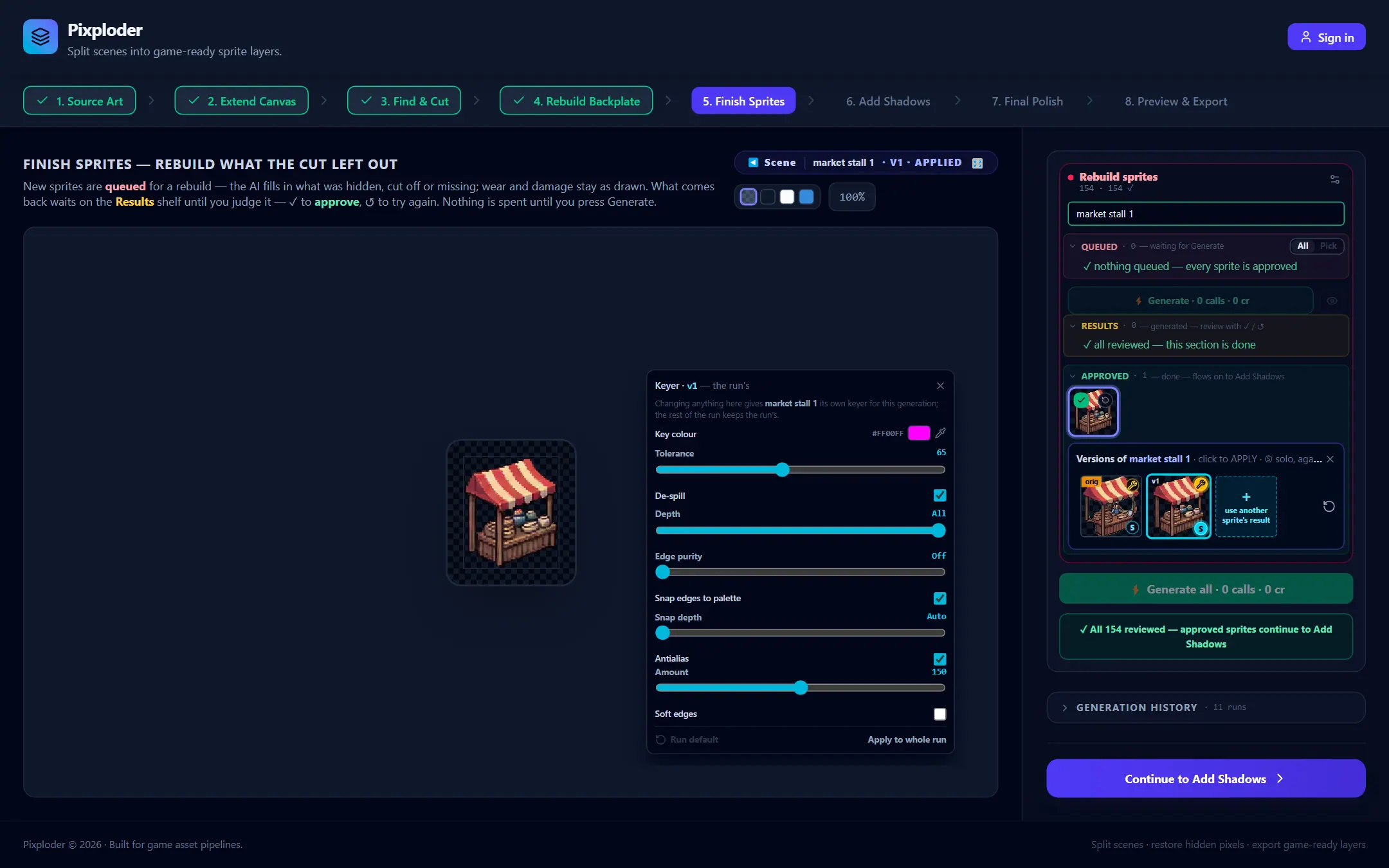
The 🎛 icon says which state you are in before you open anything: gray when this version inherits, amber when this sprite keys this version its own way, cyan while the drawer is open. Its tooltip says the same thing in words: Keyer — how this version's background is cut away. Changing it gives this sprite its own keyer for this generation. while the version inherits, Keyer — this sprite keys this version its OWN way (the run's default leaves it alone) once it does not, and Hide the keyer while the drawer is open.
Every control
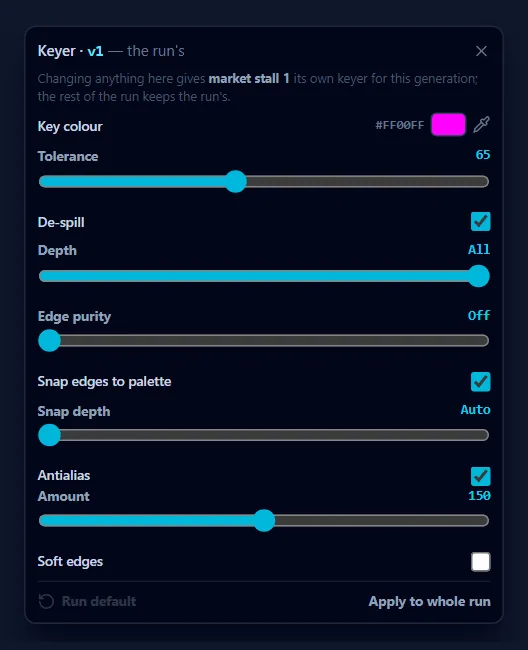
The drawer is titled Keyer · v{n}, followed by — the run's or — this sprite's own, and a line under the title says what a change would mean: Changing anything here gives {name} its own keyer for this generation; the rest of the run keeps the run's. while the version inherits, and This sprite keys this version its OWN way — the run's ⚙ leaves it alone. once it does not. ✕ closes the drawer, and so does a second press on 🎛.
Key colour
The flat background color this generation is keyed against — magenta #FF00FF by default, which is what the sheet asks for. The row prints the current value as a hex readout. Where your browser offers a screen color picker, the swatch beside it is a readout only and the pipette button is the way to change it: you click the actual flat color in the picture, rather than nudging a hue by hand until the key quietly stops matching. Where it does not, the swatch itself becomes the color input, so a sheet that came back on flat teal is still keyable either way. ↺ appears whenever the color is not magenta and puts magenta back.
Tolerance
0–150, default 65. How close a pixel has to look to the key color before it is cut away. Higher removes more of the field and more of the fringe around it; too high starts eating thin art that happens to sit near the key color in color space.
De-spill, Depth and Edge purity
De-spillis a checkbox, on by default. Key color bleeds into the edge pixels of anything drawn on it, and de-spill un-mixes it back out of the pixels the keyer keeps. Every pixel it touches is weighted by how much key color it actually holds, so the clean middle of a sprite is never re-colored.Depth—1–12px, orAllat the right-hand end, which is the default. How far in from the cut de-spill may reach. A small number keeps it on the rim so art deep inside is never re-colored; holes inside the sprite count as edges too. The scale is monotone: further right is always more de-spill, never less.Edge purity—Off(the default, at the left end) through100in steps of 5. This is what finishes de-spill's job. De-spill estimates how much key color a blended edge pixel holds, and on warm or cool art that estimate falls short — the outer rows of a gold frame come back salmon.Edge puritymeasures the leftover against each rim pixel's own clean neighbor instead, and subtracts the share you dial in, working one ring at a time from clean art outward. It changes color only: it never removes a pixel, so unlikeToleranceit cannot eat a one-pixel ornament.Offis byte-for-byte the result you get without it.
Both Depth and Edge purity are grayed out while De-spill is off — they finish work de-spill starts, and with it off there is nothing to finish.
Snap edges to palette and Snap depth
Snap edges to paletteis a checkbox, on by default. It re-colors edge pixels to the object's own palette, which is what kills the scene anti-aliasing that clings to a silhouette and the muddy half-tones a compressed source leaves behind.Snap depth—Auto(the default),1–12px, orAll. How far in from the cut the snap reaches.Autois a narrow band that, on a sprite cropped tight to its own outline, often only reaches the corner notches — which is exactly why snapping can look like it "only fixes the corners". Pick an explicit depth for a band that covers the whole silhouette, orAllfor the whole object. The scale is not one magnitude across theAutostop, so the readout names the rule you are on —Auto, a depth in px, orAll.
Set a depth while Edge purity is still Off and the row says so in amber, in place: Turn Edge purity up too — on its own a wider band spreads the leftover key colour instead of removing it. Snapping does not remove key color — it re-quantizes to a palette learned from the object's own kept pixels, every one of them but the outermost ring, so a rim pixel a step further in is a palette source as well as a target. Widening the band over a rim that still carries key color therefore spreads that color onto more pixels rather than fewer. Edge purity is the dial that removes it.
Careful. Those two belong together. On a rim that still holds key color, Snap depth on its own makes the tint cover more ground, not less. If you widen the band, raise Edge purity in the same visit.
Antialias and Amount
Antialias is a checkbox, on by default, with Amount from 0 to 300 in steps of 10, default 150. It softens convex corners and diagonal stair-steps by lowering only their opacity — straight edges stay crisp and no pixel is ever added outside the silhouette. Switching the checkbox off preserves the amount you last chose, so turning it back on restores it.
The amount is a real dial, not a taste slider. Around 100 a convex corner keeps about half its opacity; at the shipped 150 it keeps about a quarter (alpha 64 out of 255), and a one-pixel spike — a pixel that is a corner on two sides at once — drops out entirely; by about 200 corners are removed outright. So at the shipped amount, a finished cut-out's corner pixels carry partial alpha, by design.
Tip. If your engine or your pipeline wants a strictly binary alpha channel — every pixel either fully opaque or fully gone — turn Antialias off. That is the hard pixel-art edge, and it is one click away on any version.
Soft edges and Feather
Soft edges swaps the classic hard pixel-art matte for a feathered one, so anti-aliased art keeps smooth alpha along the cut instead of a 0/255 silhouette. Ticking it reveals Feather, 0.0–4.0 px, default 1.5 px. While Soft edges is on with a feather above 0.0, it takes the edge over from Antialias — the two describe the same edge, and only one of them can own it. The Antialias row stays on screen and keeps whatever you set it to; it simply stops deciding anything until you untick Soft edges, or pull the feather all the way down to 0.0, which hands the edge straight back.
Which one a version starts on depends on where the version came from. A run mints its keyer from the app's own defaults, so anything generated from the queue opens on the hard matte with Soft edges off. The project's own keyer — the one that cuts your originals, and the one a ↺ re-roll's version inherits — is seeded at intake instead: Step 1 detects whether your source is pixel art and seeds a hard matte for pixel art or a soft one for everything else, with the feather scaled to how soft the art is (about 1.0 px for crisp vector edges, up to 3.0 px for very soft ones).
The two buttons at the foot of the 🎛 drawer
Run defaultdrops this sprite's own keyer, and the version goes back to keying with the run's — pixel for pixel. It is disabled while the version already inherits.Apply to whole rundoes the opposite: these settings become the generation's keyer, every sprite of the run follows them, and any sibling that was carrying its own override gives it up. It appears only when the version belongs to a run Pixploder can find, so a version that never belonged to one has no such button: a⧉reused result, and anything the↺at the end of a version row made, which sends one sprite on its own and files no run.
Per-sprite, per-generation, per-run
A keyer is resolved per (sprite × generation), and the first answer in this order wins:
- This sprite's own override for this version, written by the
🎛drawer. - For a
⧉reused result, the source run's settings, snapshotted when the copy was assigned. - The generation's own snapshot — what the run's
⚙edits. - The run's default — what a fresh generation of that run is cut with, and what a
Run againof it is keyed with. Only the run's own⚙reads this level; a sprite asking what made its pixels skips it, so moving a run's keyer can never re-key a generation that carries no snapshot of its own. - The project's own keyer, the last fallback — and the level a version with no run at all lands on.
Two consequences worth knowing before you drag anything:
- The moment you touch a control in the
🎛drawer, that sprite is on level 1 for that generation. The drawer's header flips from— the run'sto— this sprite's own, the🎛icon goes amber, and from then on the run's⚙leaves that sprite alone. The run drawer says how many are in that state, in amber:{n} sprites carry their own keyer — this run's default leaves them alone. - Index 0 is never governed by a per-generation snapshot. The original cut-out is the sprite's own, made by its mask or by the project's keyer, and no run setting reaches it.
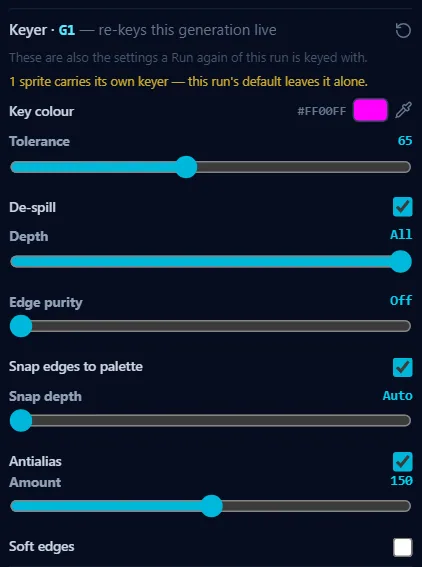
Every setting is saved with the project: per-sprite overrides on the sprite, per-generation snapshots and the run default on the run. A finished generation goes on reading exactly as it ran; moving a slider on one generation never re-keys another.
What a change re-keys
Every edit re-keys just the sprite you are looking at, live and locally: the big picture, that sprite's version-row thumbnail, and — when the version you are editing is the one the sprite currently applies — its tile in the rail, the sprite in the scene, and what Step 6 · Add Shadows through Step 8 · Preview & Export receive. The run's ⚙ does the same for a whole generation at once.
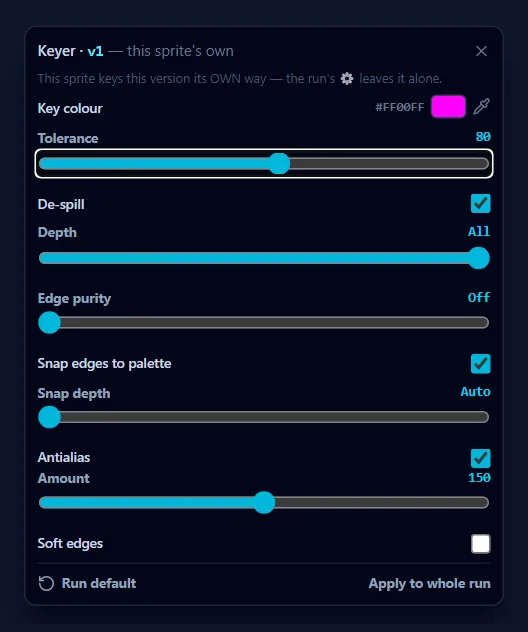
Nothing you did in the repair window is lost when you re-key. A version's MATCH ORIGINAL color match, its EDGE outline repair and its fill takes all sit on top of the keyed pixels, in that order, and are simply re-run over the new ones — no stale marker, no warning, nothing to re-apply by hand.
Note. Re-keying is free and instant, and it works on any generation you still have — including old ones. Tune the keyer after generating rather than paying for another try: a colored fringe that shows on one result and not another was painted by the AI, and Snap edges to palette with Edge purity will usually take it out without another call.
Re-cut G{n}
Occasionally the AI abandons magenta and paints a sheet on a flat neutral gray. Cutting a gray field away used to take gray art with it and leave holes, and a code fix cannot reach pixels that were already cut — but the run still stores the image the AI returned, so it can simply be cut out of those same bytes again with today's code. When a generation qualifies, its run row in GENERATION HISTORY says so in a dim ⓘ line — ⓘ G{n} was cut before the grey-field repair — it can be cut again from the model's own image, free. — with a Re-cut G{n} button on the right of it.
It asks first — Cut G{n} again? — and the dialog is explicit about the terms — no model call, no credits; the generation is replaced in place in every version row, so no new version appears and older takes are untouched; each version keeps the box it was given, because re-deriving that would shift art you have since placed by hand. It also counts how many sprites are showing that generation right now, so you know what will repaint. It re-keys with the settings that generation was really cut at, recorded when it ran — or, on a run old enough to predate that record, with the run's current keyer, and the dialog says which. Cancel backs out; Re-cut G{n} takes it. Once taken, the row records it in the same quiet voice, with the date. The offer only ever appears on this one repair; it is not a general "cut it again" button. See Calls & sheets for the rest of what a run row holds.
What the keyer does not decide
- Where the AI paints. That is the fill zone, painted on the packed sheet — a send-side instruction only. It steers the call and never merges your original into the result.
- What the sprite is. The keyer only ever removes background and cleans edges. It cannot add pixels, redraw an occluded part, or fix a bad generation; for those, judge the result and re-roll it, or open the repair window.
- The original cut-out. That comes from Step 3 · Find & Cut and the mask editor.